Graphics Clipping Plane
The graphics clipping plane feature allows the user to temporarily cut parts of the model away to help visualize the interior of a geometry or mesh. The command syntax is:
The GUI tool bar buttons to enable and manipulate the Graphics Clipping Plane are shown below:Graphics Clip {On|Off} [ Plane <plane> | [Location <location>] [Direction <direction>]]
Graphics Clip Manipulation {On|Off}

- Red Line - Clicking and dragging the left mouse on plane bounded by a red tube moves the plane along the arrow
- Center Ball - Clicking and dragging the left mouse on the center ball moves the origin of the rotation plane
- Arrow - Clicking and dragging the left mouse button on the arrow head or tail changes the direction on which the plane moves
- Right Mouse Button - Clicking and dragging the right mouse button on any part of the window resizes it
- Middle Mouse Button - Clicking and dragging the middle mouse button on the red plane moves both the center of rotation and the cutting plane
- White Bounding Border - Clicking and dragging the left mouse on the white bounding border moves the whole widget
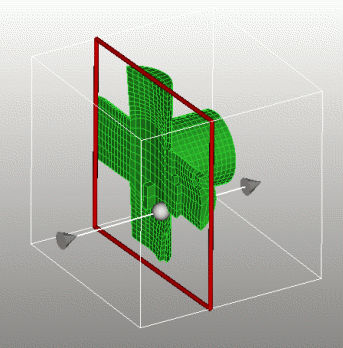
Figure 1. Graphics Clipping Plane
The second command turns on/off the visibility of manipulation widget in the graphics window. The clipping plane is still active, but the controls are hidden. The normal mouse-based view navigation controls apply.
Examples
brick x 10
sphere rad 1
graphics clip on location -2 0 0
rotate -45 about y
#shows the sphere inside the
brick
brick x 10
cylinder rad 2 z 12
subtract 2 from 1
mesh vol 1
quality vol 1 draw mesh
graphics clip on
#shows the mesh quality on
interior elements
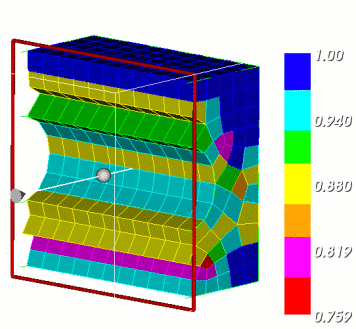
Figure 2. Viewing mesh quality of interior elements